
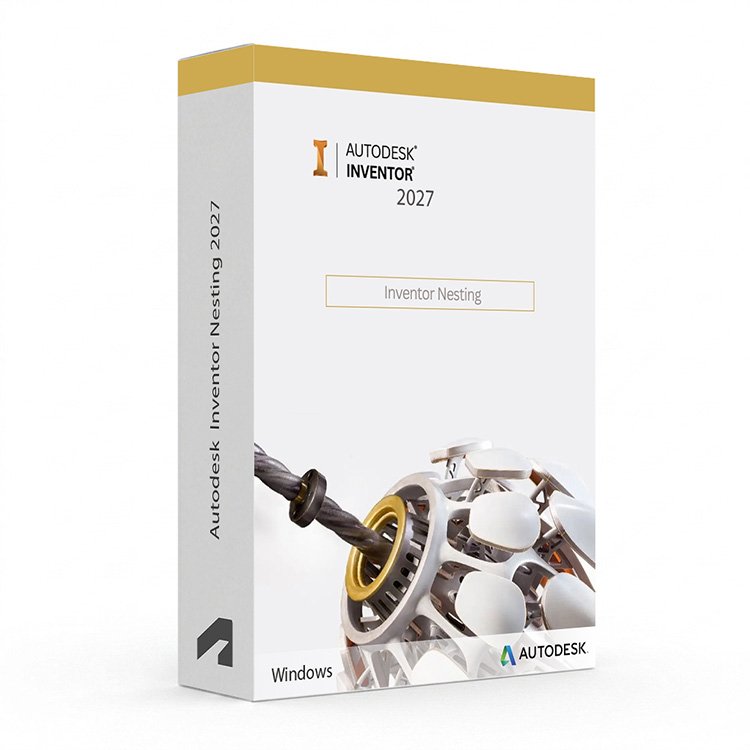
Autodesk Inventor Nesting 2027 for Windows – UK Digital Nesting Licence
Autodesk Inventor Nesting 2027 for Windows is a professional sheet metal and flat part nesting software solution designed for users who need intelligent material optimisation, automated part arrangement, waste reduction and cutting path generation tools integrated directly within the Autodesk Inventor environment on a Windows PC. It is ideal for manufacturing engineering students, sheet metal fabrication learners, CNC cutting technicians, product design students and users who need a comprehensive nesting workflow covering flat sheet optimisation, multi-sheet nesting, remnant management and cutting path output for laser, plasma, waterjet and other flat cutting processes.
Inventor Nesting 2027 uses intelligent nesting algorithms to automatically arrange flat parts on sheet material to minimise waste, reduce material costs and optimise cutting efficiency. It helps users generate efficient nesting layouts directly from Inventor flat patterns and 3D models, manage remnant sheets for future use, and output cutting data for compatible CNC cutting machines. Whether optimising sheet metal parts for laser cutting, plasma cutting or waterjet cutting, Inventor Nesting provides a professional-grade integrated nesting and material optimisation environment on Windows.
For a complete design and manufacturing setup, you can also explore our Autodesk software, compare related Inventor products, or choose Autodesk Inventor Professional 2027 for Windows if you need the full mechanical CAD and engineering simulation platform alongside your nesting workflow.
Important Notice About Inventor Nesting 2027 for Windows
Autodesk Inventor Nesting 2027 is a Windows-only application and is not available natively on macOS. Users who need nesting software on a Mac should use a compatible Windows environment. Inventor Nesting requires a Windows PC that meets the system requirements for the application.
This product is suitable for personal learning, training and non-commercial sheet metal nesting and manufacturing projects. If you need Inventor Nesting for commercial, manufacturing or professional client work, make sure your licence type clearly allows commercial use.
Why Choose Autodesk Inventor Nesting 2027 for Windows?
- Professional sheet metal and flat part nesting software integrated within Autodesk Inventor
- Intelligent nesting algorithms for automatic part arrangement and material optimisation
- Reduces material waste and cutting costs by maximising sheet utilisation
- Supports multi-sheet nesting for large production runs across multiple sheet sizes
- Remnant sheet management for tracking and reusing leftover material
- Cutting path output for laser, plasma, waterjet and other flat cutting processes
- Suitable for compatible 64-bit Windows PCs
- Lifetime access according to this product offer
- Digital delivery by email after order confirmation
- Activation instructions included
- Installation and activation support available when needed
Key Features of Inventor Nesting 2027
- Automatic Nesting Optimisation: Use intelligent nesting algorithms to automatically arrange flat parts on sheet material to achieve maximum material utilisation and minimum waste for each nesting job.
- Multi-Sheet Nesting: Nest parts across multiple sheets simultaneously to handle large production runs and complex nesting jobs requiring parts to be distributed across several sheet sizes or materials.
- Inventor Flat Pattern Integration: Import flat patterns directly from Inventor sheet metal models to ensure nesting layouts are based on accurate and up-to-date part geometry from the design model.
- DXF and DWG Import: Import flat part geometry from DXF and DWG files to nest parts from other CAD systems alongside Inventor flat patterns within the same nesting job.
- Remnant Sheet Management: Track and manage remnant sheets left over from previous nesting jobs, allowing users to reuse partial sheets and further reduce material waste across production runs.
- Material and Sheet Management: Define and manage sheet material types, sizes, thicknesses and grain directions to ensure nesting layouts respect material constraints and manufacturing requirements.
- Part Rotation and Mirroring: Control part rotation angles and mirroring options during nesting to allow the algorithm to find the most efficient arrangement within the constraints of each part and material.
- Nesting Reports: Generate nesting reports showing material utilisation, part counts, waste percentages and sheet requirements for use in production planning and material procurement.
- Cutting Path Output: Output nesting layouts and cutting paths in formats compatible with laser, plasma, waterjet and other CNC flat cutting machines for direct use in manufacturing.
- True Shape Nesting: Use true shape nesting to arrange irregular and complex part profiles efficiently on sheet material, going beyond simple rectangular bounding box arrangements for maximum material savings.
- Common Line Cutting: Apply common line cutting between adjacent parts to reduce cutting time and tool wear by sharing cut edges between neighbouring parts in the nesting layout.
- CAD Integration: Work directly with Inventor models and assemblies to access flat patterns and part data, maintaining an associative link between the design model and nesting layouts.
Inventor Nesting 2027 vs Inventor Professional, Fusion 360, SigmaNEST and Lantek
Autodesk Inventor Nesting 2027 for Windows is a strong choice for users who need integrated nesting and material optimisation within the Autodesk Inventor environment. Inventor Professional provides the full mechanical CAD and simulation platform that complements the nesting workflow, Fusion 360 includes basic nesting capabilities within a cloud-connected design and manufacturing environment, SigmaNEST is a dedicated standalone nesting platform used in manufacturing, while Lantek is an enterprise-level sheet metal nesting and manufacturing management platform.
| Software | Best For | Main Use |
|---|---|---|
| Inventor Nesting 2027 | Manufacturing students, sheet metal fabricators and CNC cutting technicians | Integrated sheet metal nesting, material optimisation, remnant management and cutting path output within Inventor |
| Autodesk Inventor Professional | Mechanical engineers, product designers and manufacturing students | 3D parametric mechanical CAD, assembly design, stress analysis, motion simulation and manufacturing documentation |
| Autodesk Fusion 360 | Product designers, makers and engineering students | Integrated cloud-connected CAD, CAM, CAE and nesting for product design and manufacturing workflows |
| SigmaNEST | Sheet metal fabricators and CNC cutting professionals | Dedicated standalone nesting software for laser, plasma, waterjet and punch cutting with advanced material management |
| Lantek | Enterprise sheet metal manufacturers and fabrication facilities | Enterprise-level sheet metal nesting, manufacturing management, quoting and production planning |
Which Software Should You Choose?
- Choose Autodesk Inventor Nesting 2027 for Windows if you need integrated sheet metal nesting, material optimisation and cutting path output within the Autodesk Inventor environment.
- Choose Autodesk Inventor Professional 2027 if you need the full mechanical CAD, engineering simulation and manufacturing documentation platform to complement your nesting workflow.
- Choose Autodesk Fusion 360 for Windows if you need a cloud-connected integrated CAD, CAM and nesting platform for product design and manufacturing workflows.
- Choose SigmaNEST if you need a dedicated standalone nesting platform with advanced material management and multi-machine support for professional sheet metal fabrication.
- Choose Lantek if you need an enterprise-level sheet metal manufacturing management platform covering nesting, quoting, production planning and shop floor management.
Recommended Products
- Autodesk Software – compare AutoCAD, Revit, Maya, Civil 3D and other Autodesk tools.
- Autodesk Inventor – explore more Inventor versions for Windows.
- Autodesk Inventor Professional 2027 for Windows – recommended for full mechanical CAD, simulation and engineering design workflows.
- Autodesk Inventor CAM Ultimate 2027 for Windows – suitable for advanced CNC machining and toolpath programming workflows.
- Windows Licences – suitable if you need a compatible Windows operating system.
- Microsoft Office – useful for project documents, spreadsheets, reports and client presentations.
System Requirements for Autodesk Inventor Nesting 2027 for Windows
| Component | Requirement |
|---|---|
| Platform | Windows PC |
| Operating System | 64-bit Microsoft Windows 11 or Windows 10 |
| Processor | Basic: 2.5 GHz or faster processor; recommended: 3+ GHz multi-core processor for complex nesting calculations and large part counts |
| Memory | Basic: 8 GB RAM; recommended: 16 GB RAM or more for large nesting jobs with high part counts and multiple sheets |
| Display | 1280 x 1024 display minimum; recommended: 1920 x 1080 or higher with True Color |
| Graphics | Minimum: 1 GB GPU compatible with DirectX 11; recommended: 4 GB GPU compatible with DirectX 12 for viewport performance |
| Storage | 40 GB available disk space for Inventor Nesting installation; SSD recommended for project files and nesting data |
| Pointing Device | MS-Mouse compliant pointing device recommended |
| Internet | Required for download, installation, sign-in, activation, updates and Autodesk account access |
Delivery and Activation
- Product: Autodesk Inventor Nesting 2027 for Windows
- Platform: Windows PC
- Licence Type: Digital licence
- Use Type: Educational, personal and non-commercial use
- Licence Duration: Lifetime access according to this product offer
- Delivery Method: Digital delivery by email
- Activation: Activation instructions provided after purchase
- Support: Installation and activation assistance available
How to Get Started
- Complete your order for Autodesk Inventor Nesting 2027 for Windows.
- Receive your product details and activation instructions by email.
- Check that your Windows PC meets the Inventor Nesting 2027 system requirements.
- Download and install Inventor Nesting 2027 on your compatible Windows computer.
- Sign in with the Autodesk account or activation method provided with your order.
- Follow the activation instructions to complete setup.
- Restart Inventor Nesting if required and begin your sheet metal nesting and material optimisation workflow.
- Contact our support team if you need help with installation or activation.
Who Is Autodesk Inventor Nesting 2027 for Windows For?
- Manufacturing engineering students and sheet metal fabrication learners
- CNC cutting technicians learning nesting and material optimisation workflows
- Product design and mechanical engineering students with sheet metal manufacturing workflows
- Users learning laser, plasma and waterjet cutting nesting and optimisation
- Users working on material waste reduction and cutting cost optimisation projects
- Users who need integrated nesting and material optimisation within Autodesk Inventor
- Users who prefer a seamless CAD to nesting workflow within the Inventor environment
Important Licence Information
This Autodesk Inventor Nesting 2027 for Windows licence is intended for educational, personal and non-commercial use. It is suitable for learning, training and personal sheet metal nesting and manufacturing projects. It should not be used for commercial, manufacturing or professional client work unless your licence type clearly allows commercial use.
Inventor Nesting is a Windows-only application and is not available natively on macOS. Before purchasing, please make sure your Windows PC is compatible with Inventor Nesting 2027 and that this licence type matches your intended use.
What is Autodesk Inventor Nesting 2027 for Windows?
Autodesk Inventor Nesting 2027 for Windows is a professional sheet metal and flat part nesting software integrated within Autodesk Inventor for automatic part arrangement, material optimisation, remnant management and cutting path output for laser, plasma, waterjet and other flat cutting processes on compatible Windows PCs.
Does Inventor Nesting 2027 work on Windows 11?
Yes. Inventor Nesting 2027 is designed for compatible 64-bit Windows systems, including Windows 11.
Can I install Inventor Nesting 2027 on Windows 10?
Yes. Inventor Nesting 2027 supports compatible 64-bit Windows 10 systems.
Does Inventor Nesting 2027 work on Mac?
No. Autodesk Inventor Nesting is a Windows-only application and is not available natively on macOS. Users who need nesting software on a Mac should use a compatible Windows environment.
What is nesting in manufacturing?
Nesting in manufacturing is the process of arranging flat parts on sheet material as efficiently as possible to minimise waste, reduce material costs and optimise cutting time. Nesting software uses algorithms to automatically find the most efficient arrangement of parts on available sheet sizes for cutting processes such as laser, plasma and waterjet cutting.
What cutting processes does Inventor Nesting support?
Inventor Nesting supports a range of flat cutting processes including laser cutting, plasma cutting and waterjet cutting by generating cutting path outputs compatible with CNC flat cutting machines used in sheet metal fabrication and manufacturing.
Does Inventor Nesting support true shape nesting?
Yes. Inventor Nesting uses true shape nesting to arrange irregular and complex part profiles efficiently on sheet material, going beyond simple rectangular bounding box arrangements to achieve maximum material utilisation and minimum waste.
Can Inventor Nesting manage remnant sheets?
Yes. Inventor Nesting includes remnant sheet management tools for tracking and managing leftover sheet material from previous nesting jobs, allowing users to reuse partial sheets in future nesting runs to further reduce material waste and costs.
Does Inventor Nesting integrate with Inventor sheet metal models?
Yes. Inventor Nesting integrates directly with Inventor sheet metal models, importing flat patterns from Inventor to ensure nesting layouts are based on accurate and up-to-date part geometry from the design model.
Can I use this licence for commercial projects?
This product is described as an educational licence for personal, learning and non-commercial use. Commercial use requires a licence type that allows commercial work.
How will I receive my Inventor Nesting 2027 licence?
Your product details and activation instructions will be delivered digitally by email after order confirmation.
Do you provide installation support?
Yes. Installation and activation support is available if you need help setting up Autodesk Inventor Nesting 2027 for Windows.


John W. –
Everything went better than I expected. The activation was fast and smooth, and the whole process was reliable. I had no issues at all, which was a relief. Great experience.
Molly H. –
The steps were easy to follow, and everything worked exactly as described. The activation was almost instant, which I really appreciated. It’s nice to have such a reliable service available. Very pleased with the outcome.
Poppy B. –
Everything was quick and efficient. The process felt professional and safe from the start.
Joseph M. –
The process was simple and secure. I’m very satisfied with the result.
Sarah C. –
I felt confident using this service. Everything was smooth and reliable.
Henry T. –
Nothing unexpected happened.
Grace H. –
Everything went smoothly, very happy.
Ahmed D. –
I expected some kind of issue or delay, but honestly it went smoothly. Installed it, activated it, and that was it.
Philip W. –
I had no problems from start to finish. Everything worked instantly, and the process was stress-free. The service was quick, clear, and reliable. I’ll definitely use it again.
Henry H. –
Worked immediately, no delays.
Sophie F. –
Everything was seamless from beginning to end. Very professional.
Keira P. –
Straightforward from start to finish.
Amelia W. –
Instant service, very happy.
Milena L. –
No need to contact support or anything.
Keira W. –
Nothing to fix afterwards.
Alfie R. –
There was a pause that made me unsure, but it finished normally.
Arthur H. –
Fairly straightforward once I slowed down and followed the steps.
Hannah B. –
I didn’t need to contact anyone for help, which says enough.
Zain C. –
The setup felt average, which is okay.
Sheila C. –
Did what it said it would.
David S. –
I didn’t run into any issues, which helped.
Dean C. –
I wouldn’t change much, though it could be faster.
Amelia S. –
Nothing unusual happened during setup, which helped.
Finlay O. –
The activation went through without any trouble.
Fiona P. –
No problems on my side.
Jessica C. –
Did exactly what it was supposed to do.
Imran S. –
No warnings or strange messages during setup.
Irene H. –
Fairly simple once I started.
Daisy W. –
Everything went through once I stopped rushing.
Lucy L. –
I expected to have to redo at least one step, but that didn’t happen. Setup took its time, though, which was slightly annoying.