
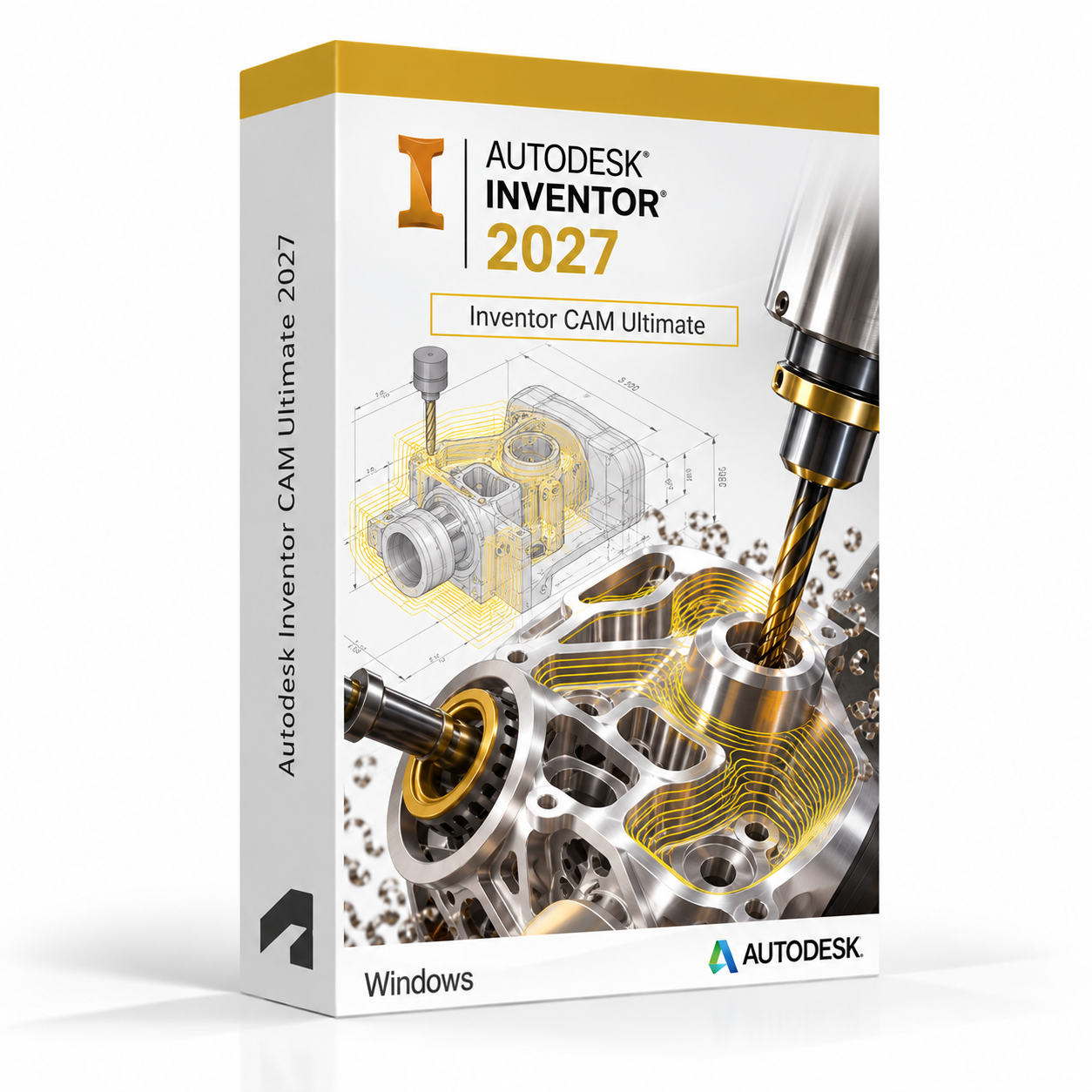
Autodesk Inventor CAM Ultimate 2027 for Windows – UK Digital CAM Licence
Autodesk Inventor CAM Ultimate 2027 for Windows is a professional computer-aided manufacturing software solution designed for users who need advanced CNC toolpath generation, multi-axis machining, turning, mill-turn, probing and manufacturing simulation tools integrated directly within the Autodesk Inventor environment on a Windows PC. It is ideal for manufacturing engineering students, CNC programming learners, machining technicians, product design students and users who need a comprehensive CAM workflow covering 2.5-axis, 3-axis, 4-axis, 5-axis and turning machining strategies directly from 3D Inventor models.
Inventor CAM Ultimate 2027 provides the most comprehensive set of CAM tools available within the Inventor CAM product range, including all milling, turning, mill-turn, probing and advanced 5-axis machining strategies. It helps users generate efficient and accurate CNC toolpaths directly from Inventor 3D models, simulate material removal and machine motion, and post-process toolpaths for a wide range of CNC machine controllers. Whether programming 3-axis milling operations, complex 5-axis machined components or turned parts, Inventor CAM Ultimate provides a professional-grade integrated manufacturing environment on Windows.
For a complete design and manufacturing setup, you can also explore our Autodesk software, compare related Inventor products, or choose Autodesk Fusion 360 for Windows if you need a cloud-connected integrated CAD, CAM and CAE platform for product design and manufacturing workflows.
Important Notice About Inventor CAM Ultimate 2027 for Windows
Autodesk Inventor CAM Ultimate 2027 is a Windows-only application and is not available natively on macOS. Users who need CAM software on a Mac should use a compatible Windows environment or consider Autodesk Fusion 360, which includes integrated CAM tools and is available for both Windows and macOS.
This product is suitable for personal learning, training and non-commercial CNC machining and manufacturing projects. If you need Inventor CAM Ultimate for commercial, manufacturing or professional client work, make sure your licence type clearly allows commercial use.
Why Choose Autodesk Inventor CAM Ultimate 2027 for Windows?
-
- Most comprehensive Inventor CAM toolset including all milling, turning, mill-turn and 5-axis machining strategies
- Integrated directly within the Autodesk Inventor environment for seamless CAD to CAM workflows
- Advanced multi-axis machining including full 5-axis simultaneous and positional strategies
- Turning and mill-turn machining strategies for lathe and combined machine tools
- Machine simulation for verifying toolpaths and detecting collisions before machining
- Wide range of post-processors for outputting G-code for compatible CNC machine controllers
- Suitable for compatible 64-bit Windows PCs
- Lifetime access according to this product offer
- Digital delivery by email after order confirmation
- Installation and activation support available when needed
Key Features of Inventor CAM Ultimate 2027
- 2.5-Axis Milling: Generate 2.5-axis CNC milling toolpaths including contour, pocket, drilling, boring, threading and engraving operations for prismatic machined components.
- 3-Axis Milling: Create efficient 3-axis surface milling toolpaths including parallel, contour, scallop, pencil, horizontal, spiral and rest machining strategies for complex 3D surfaces.
- 4-Axis Milling: Generate 4-axis milling toolpaths for machining parts that require continuous or indexed rotational axis motion to access features around a cylindrical workpiece.
- 5-Axis Simultaneous Milling: Create advanced 5-axis simultaneous toolpaths for machining complex surfaces, undercuts and features that require continuous multi-axis tool motion for efficient single-setup machining.
- Turning Strategies: Generate turning toolpaths for CNC lathes including roughing, finishing, grooving, threading, parting, drilling and boring operations for turned components.
- Mill-Turn Machining: Programme combined mill-turn machining operations for multi-tasking machine tools that combine milling and turning capabilities in a single machine setup.
- Probing Cycles: Generate on-machine probing toolpaths for workpiece setup, datum setting and in-process inspection to improve machining accuracy and reduce setup time.
- Machine Simulation: Simulate complete machine tool motion including tool, holder, workpiece and fixture to verify toolpaths, detect collisions and confirm machine travel limits before cutting.
- Stock Simulation: Visualise material removal during machining simulation to verify toolpath coverage, check for remaining stock and confirm finished part geometry against the design model.
- Post-Processing: Post-process verified toolpaths to generate G-code programs for a wide range of compatible CNC machine tool controllers using the included post-processor library.
- Tool and Material Libraries: Manage cutting tool libraries and material cutting data to apply consistent feeds, speeds and cutting parameters across machining operations and projects.
- CAD Integration: Work directly with Inventor 3D models and assemblies to programme machining operations with associative toolpaths that update automatically when the design model changes.
Inventor CAM Ultimate 2027 vs Inventor CAM, Fusion 360 CAM, Mastercam and Siemens NX CAM
Autodesk Inventor CAM Ultimate 2027 for Windows is the most complete Inventor-integrated CAM solution, including all available machining strategies. Inventor CAM offers a subset of machining strategies for users with simpler requirements, Fusion 360 CAM is a cloud-connected integrated CAM platform, Mastercam is a dedicated third-party CAM platform used widely in manufacturing, while Siemens NX CAM is an enterprise-level CAM platform for complex manufacturing workflows.
| Software | Best For | Main Use |
|---|---|---|
| Inventor CAM Ultimate 2027 | Manufacturing students, CNC programmers and machining technicians | Advanced CNC toolpath generation including 5-axis milling, turning, mill-turn, probing and machine simulation integrated with Inventor |
| Inventor CAM | Users needing standard milling and turning toolpaths within Inventor | 2.5-axis and 3-axis milling and standard turning toolpath generation integrated with Inventor |
| Autodesk Fusion 360 | Product designers, makers and engineering students | Integrated cloud-connected CAD, CAM, CAE and PCB design with 2.5-axis to 5-axis milling and turning |
| Mastercam | CNC programmers and manufacturing professionals | Dedicated standalone CAM platform for milling, turning, mill-turn, wire EDM and multi-axis machining |
| Siemens NX CAM | Enterprise manufacturing teams and complex machining workflows | Enterprise-level CAM for complex multi-axis machining, high-speed machining and manufacturing process planning |
Which Software Should You Choose?
- Choose Autodesk Inventor CAM Ultimate 2027 for Windows if you need the most comprehensive Inventor-integrated CAM toolset including advanced 5-axis milling, turning, mill-turn, probing and machine simulation workflows.
- Choose Autodesk Fusion 360 for Windows if you need a cloud-connected integrated CAD and CAM platform with 2.5-axis to 5-axis machining and turning tools for product design and manufacturing.
- Choose Mastercam if you need a dedicated standalone CAM platform with advanced milling, turning, mill-turn and multi-axis machining capabilities.
- Choose Siemens NX CAM if you need an enterprise-level CAM platform for complex multi-axis machining and manufacturing process planning.
- Choose Autodesk Inventor Professional if you need the full mechanical CAD and engineering simulation platform to complement your CAM workflow.
Recommended Products
- Autodesk Software – compare AutoCAD, Revit, Maya, Civil 3D and other Autodesk tools.
- Autodesk Inventor – explore more Inventor versions for Windows.
- Autodesk Inventor Professional 2027 for Windows – recommended for full mechanical CAD, simulation and engineering design workflows.
- Autodesk Fusion 360 for Windows – suitable for integrated cloud-connected CAD, CAM and product design workflows.
- Windows Licences – suitable if you need a compatible Windows operating system.
- Microsoft Office – useful for project documents, spreadsheets, reports and client presentations.
System Requirements for Autodesk Inventor CAM Ultimate 2027 for Windows
| Component | Requirement |
|---|---|
| Platform | Windows PC |
| Operating System | 64-bit Microsoft Windows 11 or Windows 10 |
| Processor | Basic: 2.5 GHz or faster processor; recommended: 3+ GHz multi-core processor for complex toolpath calculation and machine simulation |
| Memory | Basic: 8 GB RAM; recommended: 16 GB RAM or more for large assemblies, complex toolpaths and machine simulation |
| Display | 1280 x 1024 display minimum; recommended: 1920 x 1080 or higher with True Color |
| Graphics | Minimum: 1 GB GPU compatible with DirectX 11; recommended: 4 GB GPU compatible with DirectX 12 for 3D viewport and simulation performance |
| Storage | 40 GB available disk space for Inventor CAM Ultimate installation; SSD recommended for project files and toolpath data |
| Pointing Device | Three-button mouse recommended for 3D viewport navigation |
| Internet | Required for download, installation, sign-in, activation, updates and Autodesk account access |
Delivery and Activation
- Product: Autodesk Inventor CAM Ultimate 2027 for Windows
- Platform: Windows PC
- Licence Type: Digital licence
- Use Type: Educational, personal and non-commercial use
- Licence Duration: Lifetime access according to this product offer
- Delivery Method: Digital delivery by email
- Activation: Activation instructions provided after purchase
- Support: Installation and activation assistance available
How to Get Started
- Complete your order for Autodesk Inventor CAM Ultimate 2027 for Windows.
- Receive your product details and activation instructions by email.
- Check that your Windows PC meets the Inventor CAM Ultimate 2027 system requirements.
- Download and install Inventor CAM Ultimate 2027 on your compatible Windows computer.
- Sign in with the Autodesk account or activation method provided with your order.
- Follow the activation instructions to complete setup.
- Restart Inventor CAM Ultimate if required and begin your CNC machining and toolpath programming workflow.
- Contact our support team if you need help with installation or activation.
Who Is Autodesk Inventor CAM Ultimate 2027 for Windows For?
- Manufacturing engineering students and CNC programming learners
- Machining technicians and CNC operators learning advanced toolpath programming
- Product design and mechanical engineering students with manufacturing workflows
- Users learning 5-axis milling, turning and mill-turn machining strategies
- Users working on machine simulation, probing and post-processing workflows
- Users who need the most complete Inventor-integrated CAM toolset on Windows
- Users who prefer integrated CAD and CAM within the Autodesk Inventor environment
Important Licence Information
This Autodesk Inventor CAM Ultimate 2027 for Windows licence is intended for educational, personal and non-commercial use. It is suitable for learning, training and personal CNC machining and manufacturing projects. It should not be used for commercial, manufacturing or professional client work unless your licence type clearly allows commercial use.
Inventor CAM Ultimate is a Windows-only application and is not available natively on macOS. Before purchasing, please make sure your Windows PC is compatible with Inventor CAM Ultimate 2027 and that this licence type matches your intended use.
What is Autodesk Inventor CAM Ultimate 2027 for Windows?
Autodesk Inventor CAM Ultimate 2027 for Windows is a professional CAM software integrated within Autodesk Inventor for generating advanced CNC toolpaths including 2.5-axis, 3-axis, 4-axis, 5-axis milling, turning, mill-turn and probing strategies, with machine simulation and post-processing for CNC manufacturing on compatible Windows PCs.
Does Inventor CAM Ultimate 2027 work on Windows 11?
Yes. Inventor CAM Ultimate 2027 is designed for compatible 64-bit Windows systems, including Windows 11.
Can I install Inventor CAM Ultimate 2027 on Windows 10?
Yes. Inventor CAM Ultimate 2027 supports compatible 64-bit Windows 10 systems.
Does Inventor CAM Ultimate 2027 work on Mac?
No. Autodesk Inventor CAM Ultimate is a Windows-only application and is not available natively on macOS. Mac users who need integrated CAD and CAM tools should consider Autodesk Fusion 360, which is available for both Windows and macOS.
What is the difference between Inventor CAM and Inventor CAM Ultimate?
Inventor CAM Ultimate is the most comprehensive version of Inventor CAM and includes all available machining strategies including advanced 5-axis simultaneous milling, turning, mill-turn, probing and machine simulation. Inventor CAM offers a subset of machining strategies suited to users with simpler 2.5-axis and 3-axis milling and turning requirements.
What is the difference between Inventor CAM Ultimate and Fusion 360 CAM?
Inventor CAM Ultimate is integrated within the Autodesk Inventor desktop environment for users who work primarily in Inventor for their mechanical CAD design. Fusion 360 CAM is integrated within the cloud-connected Fusion 360 platform and offers similar CAM capabilities within a more accessible product design and manufacturing environment suited to students and makers.
Does Inventor CAM Ultimate support 5-axis machining?
Yes. Inventor CAM Ultimate includes advanced 5-axis simultaneous and positional machining strategies for programming complex multi-axis CNC milling operations, allowing users to machine intricate surfaces and features in fewer setups.
Does Inventor CAM Ultimate include turning tools?
Yes. Inventor CAM Ultimate includes comprehensive turning strategies for CNC lathes including roughing, finishing, grooving, threading, parting, drilling and boring operations, as well as mill-turn strategies for combined machine tools.
Does Inventor CAM Ultimate include machine simulation?
Yes. Inventor CAM Ultimate includes machine simulation tools for verifying complete machine tool motion including tool, holder, workpiece and fixture to detect collisions and confirm machine travel limits before cutting material on the CNC machine.
Can I use this licence for commercial projects?
This product is described as an educational licence for personal, learning and non-commercial use. Commercial use requires a licence type that allows commercial work.
How will I receive my Inventor CAM Ultimate 2027 licence?
Your product details and activation instructions will be delivered digitally by email after order confirmation.
Do you provide installation support?
Yes. Installation and activation support is available if you need help setting up Autodesk Inventor CAM Ultimate 2027 for Windows.



Louis M. –
The service was excellent from beginning to end. The order was easy to complete, the activation was quick, and everything worked immediately. I liked the professional approach and the reliability throughout the process. It was stress-free and simple. A great experience overall.
William M. –
The experience was smooth from beginning to end. The order was easy to place, and activation worked instantly. I didn’t encounter any issues, which was refreshing. The professionalism of the service gave me confidence. Excellent overall.
Alice P. –
Everything about this experience was excellent. The process was clear, the activation was immediate, and I had zero problems. I really liked the fact that I never had to wait or contact support, because everything just worked. It’s rare to find something so easy and stress-free. I will be back as a returning customer.
Jessica H. –
I found it very easy to use. The activation happened instantly and without issues.
Rosie R. –
Very positive experience overall. The service was quick and problem-free.
Scarlett H. –
Smooth and simple from start to finish. I’m very pleased.
Rachel S. –
The process couldn’t have been easier. Everything was fast and professional, and activation worked instantly. I appreciated how reliable it all felt. It gave me confidence that I can trust this service in the future. Highly recommend.
Joshua B. –
I was a bit skeptical before placing my order, but I was pleasantly surprised by how smooth everything went. The steps were clear and easy to follow, and everything was completed in just a few minutes. The activation worked instantly without any issues. The whole service gave me confidence that I was in good hands. I would definitely recommend it.
Sebastian T. –
Great service, highly recommend.
Mark H. –
Top service, no problems at all.
Sarah R. –
The reliability of the service impressed me. Everything was simple, straightforward, and activated immediately. I was very pleased with how professional it all felt. I would recommend it.
Nathan R. –
I was amazed at how easy the entire process was. From ordering to activation, everything was handled smoothly without any interruptions. The instructions were clear, and everything worked exactly as promised. The service gave me complete confidence in its reliability. I’ll absolutely be using it again.
Anna M. –
In the end, it worked as expected, even if the process felt a bit slow and ordinary.
Luke C. –
It couldn’t have been easier. The process was quick and stress-free.
Craig R. –
The instructions could’ve been clearer in places, though they were enough to get through without issues.
Nathan H. –
No issues during installation.
Beth H. –
I wasn’t impressed by the setup experience, but I also didn’t have any issues once it finished.
Chloe R. –
This was an excellent experience overall. The service was quick, reliable, and completely stress-free. Activation happened immediately without any errors. It felt professional and trustworthy the whole time. I’ll definitely use it again.
Louise P. –
Setup wasn’t complicated.
Hiba W. –
Once I started, everything went through without any real problems.
Arthur H. –
Fairly straightforward once I slowed down and followed the steps.
Kieran P. –
I had low expectations going in, so I was pleasantly surprised that nothing went wrong during setup.
Mark L. –
It wasn’t obvious at first what to do, but the instructions helped.
Zahra W. –
All went smoothly enough.
Jack H. –
Not instant, not difficult. Somewhere in the middle, really.
Felix P. –
Simple steps, easy to follow.
Aman O. –
Had to double-check one step, but after that it worked.
Will L. –
Nothing special, but nothing annoying either.
Gemma T. –
Pretty smooth experience overall, nothing to worry about.
Katie S. –
There was a moment where I wondered if I’d missed something, but it turned out to be fine. Setup completed without errors.