
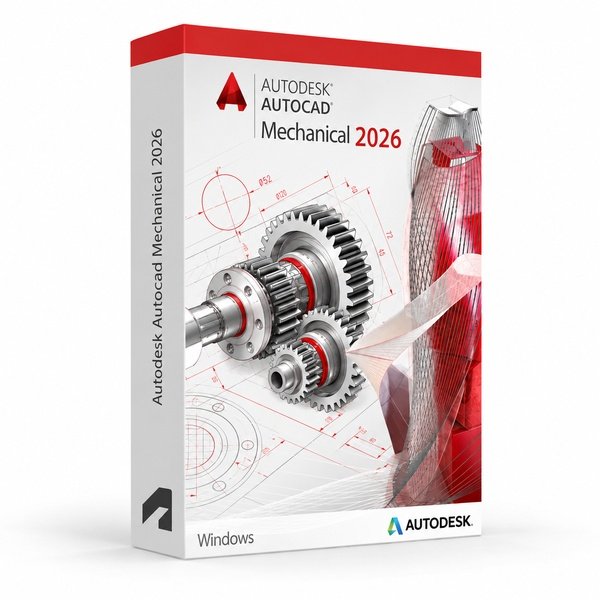
Autodesk AutoCAD Mechanical 2026 for Windows – UK Digital CAD Licence
Autodesk AutoCAD Mechanical 2026 for Windows is a professional mechanical CAD software solution designed for users who need specialised tools for mechanical drafting, manufacturing documentation, machinery layouts, part drawings, assemblies, Bill of Materials and DWG-based engineering design on a Windows PC. It is ideal for mechanical engineering students, manufacturing learners, CAD technicians, product design learners and users who need an AutoCAD workflow focused on mechanical design.
AutoCAD Mechanical 2026 includes the familiar AutoCAD drafting environment with mechanical-specific tools for standard parts, components, layers, dimensions, symbols, annotations, title blocks, detailing and automated Bills of Materials. It helps users create mechanical drawings faster than manual CAD drafting by using intelligent mechanical objects, standards-based libraries and automation features.
For a complete design setup, you can also explore our Autodesk software, compare related AutoCAD products, or choose Autodesk AutoCAD 2026 for Windows if you need the full AutoCAD package with multiple specialised toolsets.
Important Notice About AutoCAD Mechanical 2026 for Windows
Autodesk AutoCAD Mechanical 2026 is part of the AutoCAD specialised toolsets and is designed for Windows users. The Mechanical toolset is not available natively on macOS, so users who need AutoCAD Mechanical should use a compatible Windows PC.
This product is suitable for personal learning, training and non-commercial mechanical CAD projects. If you need AutoCAD Mechanical for commercial, industrial or professional client work, make sure your licence type clearly allows commercial use.
Why Choose Autodesk AutoCAD Mechanical 2026 for Windows?
- Professional mechanical CAD software for Windows users
- Designed for mechanical drafting, manufacturing drawings and engineering documentation
- Includes 700,000+ standards-based parts, features and mechanical content
- Useful for mechanical components, assemblies, part drawings, dimensions and BOMs
- Works with DWG files and the familiar AutoCAD drafting environment
- Helps automate mechanical layers, dimensions, annotations and Bills of Materials
- Suitable for compatible 64-bit Windows PCs
- Lifetime access according to this product offer
- Digital delivery by email after order confirmation
- Activation instructions included
- Installation and activation support available when needed
Key Features of AutoCAD Mechanical 2026
- Mechanical Drafting Tools: Create professional mechanical drawings, part layouts, assembly documentation and manufacturing drawings using mechanical CAD tools.
- 700,000+ Standard Parts and Features: Access a large library of standards-based mechanical parts, tools and custom content for engineering workflows.
- Updated ISO Standard Support: Work with ISO 1101:2017(E) standard revision support for feature control frames, datum symbols, feature identifiers and datum targets.
- Connected Support Files: Share one set of support files across Autodesk Docs project drawings and collaborators for more consistent project setups.
- Find and Replace in AMNOTE: Use improved find and replace options inside AMNOTE leader notes for faster annotation editing.
- Standards-Based Design: Support common mechanical drafting standards such as ISO, ANSI, DIN, JIS, BSI, CSN and GB.
- Customised Layer Management: Save time with commands that create mechanical layers automatically instead of managing every layer manually.
- Bill of Materials: Automate BOM creation and manage part lists, associative balloons and part references more efficiently.
- Power and Automatic Dimensioning: Create mechanical dimensions faster using power dimension commands and standard-based settings.
- GD&T Symbols and Annotations: Add geometric dimensioning and tolerancing symbols, welding symbols, surface texture symbols and reusable annotation content.
- Leader Notes: Use context-sensitive leader notes and templates to create more meaningful mechanical annotations.
- Drawing Borders and Title Blocks: Work with drawing borders and title blocks that can be customised for your mechanical documentation workflow.
- Mechanical Detailing Tools: Use dedicated tools such as centreline, hidden line, hole charts and viewport scale areas for mechanical drawing details.
- 2D Calculations: Use calculation tools such as shaft calculation, FEA-related workflows, moment of inertia and other 2D engineering calculation tools.
- DWG File Compatibility: Create, edit and share DWG files using the AutoCAD-based mechanical design environment.
AutoCAD Mechanical 2026 vs AutoCAD 2026, AutoCAD LT, Inventor and SOLIDWORKS
Autodesk AutoCAD Mechanical 2026 for Windows is a strong choice for users who need AutoCAD drafting with mechanical engineering tools. Standard AutoCAD is broader for general CAD work, AutoCAD LT is lighter for 2D drafting, while Inventor and SOLIDWORKS are better suited for full 3D mechanical product design, assemblies and parametric modelling.
| Software | Best For | Main Use |
|---|---|---|
| AutoCAD Mechanical 2026 | Mechanical CAD users, manufacturing learners and CAD technicians | Mechanical drafting, standard parts, BOMs, dimensions, annotations and manufacturing drawings |
| AutoCAD 2026 | General CAD users, engineers and designers | 2D drafting, 3D CAD modelling, DWG editing and specialised toolsets |
| AutoCAD LT 2026 | Users who only need lightweight 2D drafting | 2D drawings and DWG editing without full 3D tools or mechanical automation features |
| Autodesk Inventor | Mechanical engineers and product designers | 3D mechanical design, assemblies, parametric modelling and manufacturing documentation |
| SOLIDWORKS | Mechanical engineers, product designers and manufacturing users | 3D mechanical CAD, parts, assemblies, simulations and production drawings |
Which Software Should You Choose?
- Choose Autodesk AutoCAD Mechanical 2026 for Windows if you need AutoCAD-based tools for mechanical drafting, standard parts, BOMs, dimensions, annotations and manufacturing drawings.
- Choose Autodesk AutoCAD 2026 for Windows if you need the full AutoCAD package with multiple specialised toolsets.
- Choose AutoCAD LT if you only need simple 2D drafting and do not need mechanical automation tools.
- Choose Autodesk Inventor if you need full 3D mechanical design, parametric parts and assemblies.
- Choose SOLIDWORKS if you need advanced 3D mechanical CAD for parts, assemblies and manufacturing workflows.
Recommended Products
- Autodesk Software – compare AutoCAD, Revit, 3ds Max, Maya, Inventor and other Autodesk tools.
- Autodesk AutoCAD – explore more AutoCAD versions for Windows and macOS.
- Autodesk AutoCAD 2026 for Windows – recommended if you need all AutoCAD specialised toolsets.
- Autodesk Inventor – suitable for 3D mechanical product design and assemblies.
- SOLIDWORKS – suitable for mechanical design, product modelling and manufacturing drawings.
- Windows Licences – suitable if you need a compatible Windows operating system.
- Microsoft Office – useful for project documents, spreadsheets, reports and client presentations.
System Requirements for Autodesk AutoCAD Mechanical 2026 for Windows
| Component | Requirement |
|---|---|
| Platform | Windows PC |
| Operating System | 64-bit Microsoft Windows 11 or Windows 10 |
| Processor | Basic: 2.5–2.9 GHz processor; recommended: 3+ GHz processor |
| Memory | Basic: 16 GB RAM for AutoCAD Mechanical; recommended: 32 GB RAM |
| Display | 1920 x 1080 with True Color; high-resolution and 4K displays supported with a recommended graphics card |
| Graphics | Minimum: 2 GB GPU compatible with DirectX 11; recommended: 8 GB GPU compatible with DirectX 12 |
| Storage | 12 GB available disk space for AutoCAD Mechanical; SSD recommended |
| Pointing Device | MS-Mouse compliant pointing device |
| Internet | Required for download, installation, sign-in, activation, updates and Autodesk account access |
Delivery and Activation
- Product: Autodesk AutoCAD Mechanical 2026 for Windows
- Platform: Windows PC
- Licence Type: Digital licence
- Use Type: Educational, personal and non-commercial use
- Licence Duration: Lifetime access according to this product offer
- Delivery Method: Digital delivery by email
- Activation: Activation instructions provided after purchase
- Support: Installation and activation assistance available
How to Get Started
- Complete your order for Autodesk AutoCAD Mechanical 2026 for Windows.
- Receive your product details and activation instructions by email.
- Check that your Windows PC meets the AutoCAD Mechanical 2026 system requirements.
- Download and install AutoCAD Mechanical 2026 on your compatible Windows computer.
- Sign in with the Autodesk account or activation method provided with your order.
- Follow the activation instructions to complete setup.
- Restart AutoCAD Mechanical if required and begin your mechanical CAD workflow.
- Contact our support team if you need help with installation or activation.
Who Is Autodesk AutoCAD Mechanical 2026 for Windows For?
- Mechanical engineering students and training users
- Mechanical CAD technicians
- Manufacturing and product design learners
- Machinery design and mechanical drafting users
- Users who need mechanical DWG drawings
- Users working on parts, assemblies, BOMs, dimensions and manufacturing documentation
- Users who prefer AutoCAD drafting with mechanical-specific tools
Important Licence Information
This Autodesk AutoCAD Mechanical 2026 for Windows licence is intended for educational, personal and non-commercial use. It is suitable for learning, training and personal mechanical CAD projects. It should not be used for commercial, industrial or professional client work unless your licence type clearly allows commercial use.
AutoCAD Mechanical is a Windows-only specialised toolset. It is not available natively in AutoCAD for Mac. Before purchasing, please make sure your Windows PC is compatible with AutoCAD Mechanical 2026 and that this licence type matches your intended use.
What is Autodesk AutoCAD Mechanical 2026 for Windows?
Autodesk AutoCAD Mechanical 2026 for Windows is a mechanical-focused AutoCAD toolset for creating mechanical drawings, parts, manufacturing documentation, BOMs, annotations, dimensions and DWG-based engineering drawings on Windows PCs.
Is AutoCAD Mechanical 2026 included with AutoCAD 2026?
Yes. The Mechanical toolset is included with AutoCAD 2026 as one of the specialised toolsets for Windows users.
Does AutoCAD Mechanical 2026 work on Windows 11?
Yes. AutoCAD Mechanical 2026 is designed for compatible 64-bit Windows systems, including Windows 11.
Can I install AutoCAD Mechanical 2026 on Windows 10?
Yes. AutoCAD Mechanical 2026 supports compatible 64-bit Windows 10 systems.
Does AutoCAD Mechanical 2026 work on Mac?
No. AutoCAD Mechanical is part of the Windows-only specialised toolsets and is not available natively in AutoCAD for Mac.
What is new in AutoCAD Mechanical 2026?
AutoCAD Mechanical 2026 includes ISO 1101:2017(E) standard revision support, Connected Support Files and Find and Replace options for AMNOTE leader notes.
What is the difference between AutoCAD and AutoCAD Mechanical?
AutoCAD is general CAD software for 2D drafting, 3D modelling and DWG editing. AutoCAD Mechanical adds mechanical-specific tools such as standard parts, mechanical layers, BOMs, power dimensions, GD&T symbols, title blocks, detailing tools and 2D calculation workflows.
Does AutoCAD Mechanical include standard parts?
Yes. AutoCAD Mechanical includes a large library of standards-based mechanical parts and features for mechanical engineering and manufacturing workflows.
Is AutoCAD Mechanical the same as Autodesk Inventor?
No. AutoCAD Mechanical is AutoCAD-based mechanical drafting software for 2D mechanical documentation and DWG workflows. Autodesk Inventor is mainly used for 3D parametric mechanical design, parts and assemblies.
Is AutoCAD Mechanical the same as SOLIDWORKS?
No. AutoCAD Mechanical is focused on AutoCAD-based mechanical drafting and documentation. SOLIDWORKS is mainly used for 3D mechanical CAD, parts, assemblies and manufacturing design workflows.
Can I use this licence for commercial projects?
This product is described as an educational licence for personal, learning and non-commercial use. Commercial use requires a licence type that allows commercial work.
How will I receive my AutoCAD Mechanical 2026 licence?
Your product details and activation instructions will be delivered digitally by email after order confirmation.
Do you provide installation support?
Yes. Installation and activation support is available if you need help setting up Autodesk AutoCAD Mechanical 2026 for Windows.


Esme W. –
So simple and straightforward.
Henry T. –
The experience was flawless from start to finish. Everything was clear and easy to follow, and activation was seamless. I didn’t have to worry about a single issue. The professionalism stood out the entire time. I’m very satisfied.
Mia G. –
Quick setup, no issues whatsoever.
Liam R. –
The service was professional and efficient. I completed everything in minutes, and it worked immediately. It felt safe and reliable throughout. Great experience.
Archie S. –
This was my first time trying omegakeys.co.uk, and I couldn’t be happier with how it turned out. The process was simple, the instructions were clear, and everything worked exactly as expected. The activation was immediate, which saved me a lot of time. I felt completely confident throughout the entire process. Overall, a very trustworthy and reliable service.
Paul S. –
Very easy and quick to use.
Bradley A. –
Everything worked right away, very pleased.
Alice K. –
I liked how everything was well organized and easy to understand. The order was processed immediately, and activation took no time at all. I didn’t need to ask for any help because everything worked perfectly the first time. The entire experience was smooth and stress-free. Highly recommend this service.
Hamza S. –
The setup felt a bit clunky in places, though it still did the job without needing fixes.
Ahmed D. –
I expected some kind of issue or delay, but honestly it went smoothly. Installed it, activated it, and that was it.
Emily R. –
It wasn’t a pleasant surprise or a bad one, just a fairly standard experience.
Hiba C. –
Instructions were mostly clear, though I had to reread one section. Once that was sorted, the rest went through properly.
Louis L. –
It wasn’t a smooth click-and-go setup, but it wasn’t stressful either.
Poppy C. –
Very efficient and user-friendly. Everything worked instantly.
Sienna C. –
Instructions were clear enough.
Raymond E. –
It worked right after installation, which was nice.
Amelia P. –
Pretty standard process.
Gemma W. –
No strange messages or warnings.
Matthew P. –
It took a bit of time, but no troubleshooting needed.
Jessica H. –
Setup was okay, just slower than expected.
Kunal N. –
The download link worked perfectly the first time.
Tobias J. –
Setup worked fine on my system without changes.
Craig G. –
Everything went much faster than I expected.
Alistair L. –
Worked without any hassle.
Dan G. –
No delays, no confusion.
Megan M. –
Decent and straightforward.
Will W. –
It wasn’t instant, but nothing felt broken.
Claire M. –
It wasn’t particularly intuitive at first, but once I followed the steps carefully, it worked.
Sienna M. –
Installation finished faster than I thought it would.
Poppy R. –
The experience was fine, though a bit slow in places.
Liam B. –
Did the job without any fuss.