
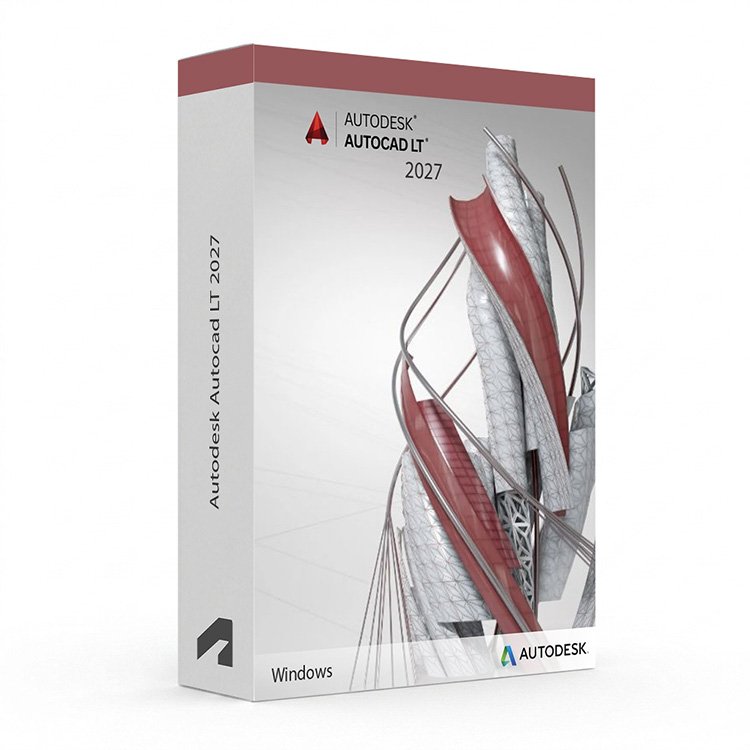
Autodesk AutoCAD LT 2027 for Windows – UK Digital 2D CAD Licence
Autodesk AutoCAD LT 2027 for Windows is a professional 2D drafting and DWG editing software solution designed for users who need reliable tools for technical drawing, floor plans, engineering layouts, construction documentation and precise 2D design workflows on a Windows PC. It is ideal for CAD students, architectural drafters, engineering technicians, construction documentation users and anyone who needs a focused, lightweight AutoCAD experience without the full toolset of standard AutoCAD.
AutoCAD LT 2027 includes the core AutoCAD 2D drafting environment with tools for drawing, editing, annotating and printing precise technical drawings in DWG format. It helps users create accurate 2D documentation faster by using a streamlined interface, familiar drafting commands and reliable DWG compatibility. Without the 3D modelling tools or specialised toolsets of full AutoCAD, AutoCAD LT keeps the focus squarely on 2D drafting efficiency.
For a complete design setup, you can also explore our Autodesk software, compare related AutoCAD products, or choose Autodesk AutoCAD 2027 for Windows if you need the full AutoCAD package with 3D tools and specialised toolsets.
Important Notice About AutoCAD LT 2027 for Windows
Autodesk AutoCAD LT 2027 for Windows is designed for users on compatible Windows PCs. AutoCAD LT is also available separately for macOS users. This Windows version is not suitable for Mac users and should only be installed on a compatible 64-bit Windows system.
This product is suitable for personal learning, training and non-commercial 2D drafting projects. If you need AutoCAD LT for commercial, construction or professional client work, make sure your licence type clearly allows commercial use.
Why Choose Autodesk AutoCAD LT 2027 for Windows?
- Professional 2D drafting and DWG editing software for Windows users
- Designed for technical drawing, floor plans, engineering layouts and construction documentation
- Streamlined AutoCAD experience focused on 2D drafting without 3D modelling tools
- Useful for lines, arcs, dimensions, annotations, layers, blocks and plot layouts
- Works with DWG files and is compatible with the broader AutoCAD ecosystem
- Helps produce accurate 2D drawings using familiar AutoCAD commands and workflows
- Suitable for compatible 64-bit Windows PCs
- Lifetime access according to this product offer
- Digital delivery by email after order confirmation
- Activation instructions included
- Installation and activation support available when needed
Key Features of AutoCAD LT 2027
- 2D Drafting Tools: Create precise technical drawings, floor plans, engineering layouts and construction documentation using core AutoCAD 2D drafting commands and tools.
- DWG File Compatibility: Create, open, edit and share DWG files with full compatibility across the AutoCAD ecosystem and with other DWG-based software.
- Annotation and Dimensioning: Add dimensions, text, leaders, callouts and other annotation content to drawings using standards-based annotation tools.
- Layer Management: Organise drawing content using layers, with controls for visibility, colour, line type and line weight across the drawing.
- Blocks and Reusable Content: Create, insert and manage blocks and reusable drawing content to maintain consistency and speed up repetitive drafting tasks.
- Layout and Plot Tools: Set up paper space layouts, viewports and plot configurations to produce accurate printed and exported drawing outputs.
- External References: Attach and manage external reference files to coordinate drawing content across multiple files within a project.
- Sheet Sets: Organise and manage sets of drawing sheets for more efficient project documentation and drawing set management.
- PDF and Image Import: Import PDF files and raster images as underlays to use as reference content within 2D drawings.
- Collaboration Tools: Share DWG files and drawing views with collaborators using Autodesk sharing features built into the AutoCAD LT environment.
- Customisable Interface: Adjust the AutoCAD LT workspace, toolbars and command shortcuts to suit individual drafting preferences and workflows.
- Trusted DWG Format: Work in the industry-standard DWG format to ensure drawing compatibility with clients, contractors and collaborators across the industry.
AutoCAD LT 2027 vs AutoCAD 2027, AutoCAD Mechanical, AutoCAD Architecture and AutoCAD MEP
Autodesk AutoCAD LT 2027 for Windows is a focused 2D drafting tool suitable for users who do not need 3D modelling or specialised toolsets. Full AutoCAD includes 3D tools and specialised toolsets, while AutoCAD Mechanical, AutoCAD Architecture and AutoCAD MEP add discipline-specific automation and content libraries on top of the core AutoCAD environment.
| Software | Best For | Main Use |
|---|---|---|
| AutoCAD LT 2027 | CAD drafters, technicians and users who need focused 2D drawing tools | 2D drafting, DWG editing, technical drawing, annotations, layouts and construction documentation |
| AutoCAD 2027 | General CAD users, engineers and designers | 2D drafting, 3D CAD modelling, DWG editing and access to all specialised toolsets |
| AutoCAD Mechanical 2027 | Mechanical engineers and manufacturing drafters | Mechanical drafting, standard parts, BOMs, power dimensions and manufacturing documentation |
| AutoCAD Architecture 2027 | Architects and architectural drafters | Architectural drafting, floor plans, sections, elevations and building documentation |
| AutoCAD MEP 2027 | MEP engineers and building services designers | Mechanical, electrical and plumbing building services design and documentation |
Which Software Should You Choose?
- Choose Autodesk AutoCAD LT 2027 for Windows if you need a focused, reliable 2D drafting and DWG editing tool without 3D modelling or discipline-specific automation features.
- Choose Autodesk AutoCAD 2027 for Windows if you need the full AutoCAD package with 3D tools and multiple specialised toolsets.
- Choose AutoCAD Mechanical if you need mechanical-specific drafting tools, standard parts and manufacturing documentation features.
- Choose AutoCAD Architecture if you need architectural drafting tools, floor plans, sections and building documentation features.
- Choose AutoCAD MEP if you need mechanical, electrical and plumbing building services design and documentation tools.
Recommended Products
- Autodesk Software – compare AutoCAD, Revit, Civil 3D, Inventor and other Autodesk tools.
- Autodesk AutoCAD – explore more AutoCAD versions for Windows and macOS.
- Autodesk AutoCAD 2027 for Windows – recommended if you need full AutoCAD with 3D tools and specialised toolsets.
- AutoCAD Mechanical – suitable for mechanical drafting, standard parts and manufacturing documentation.
- Windows Licences – suitable if you need a compatible Windows operating system.
- Microsoft Office – useful for project documents, spreadsheets, reports and client presentations.
System Requirements for Autodesk AutoCAD LT 2027 for Windows
| Component | Requirement |
|---|---|
| Platform | Windows PC |
| Operating System | 64-bit Microsoft Windows 11 or Windows 10 |
| Processor | Basic: 2.5–2.9 GHz processor; recommended: 3+ GHz processor |
| Memory | Basic: 8 GB RAM for AutoCAD LT; recommended: 16 GB RAM |
| Display | 1920 x 1080 with True Color; high-resolution and 4K displays supported with a recommended graphics card |
| Graphics | Minimum: 1 GB GPU compatible with DirectX 11; recommended: 4 GB GPU compatible with DirectX 12 |
| Storage | 10 GB available disk space for AutoCAD LT; SSD recommended |
| Pointing Device | MS-Mouse compliant pointing device |
| Internet | Required for download, installation, sign-in, activation, updates and Autodesk account access |
Delivery and Activation
- Product: Autodesk AutoCAD LT 2027 for Windows
- Platform: Windows PC
- Licence Type: Digital licence
- Use Type: Educational, personal and non-commercial use
- Licence Duration: Lifetime access according to this product offer
- Delivery Method: Digital delivery by email
- Activation: Activation instructions provided after purchase
- Support: Installation and activation assistance available
How to Get Started
- Complete your order for Autodesk AutoCAD LT 2027 for Windows.
- Receive your product details and activation instructions by email.
- Check that your Windows PC meets the AutoCAD LT 2027 system requirements.
- Download and install AutoCAD LT 2027 on your compatible Windows computer.
- Sign in with the Autodesk account or activation method provided with your order.
- Follow the activation instructions to complete setup.
- Restart AutoCAD LT if required and begin your 2D drafting and DWG editing workflow.
- Contact our support team if you need help with installation or activation.
Who Is Autodesk AutoCAD LT 2027 for Windows For?
- CAD students and technical drawing learners
- Architectural and engineering drafters who work primarily in 2D
- Construction documentation and drawing technicians
- Users who need DWG compatibility without full AutoCAD features
- Users upgrading from older AutoCAD LT versions
- Users who want a lightweight, focused 2D CAD tool on Windows
- Users who prefer a cost-effective AutoCAD option without 3D or specialised toolsets
Important Licence Information
This Autodesk AutoCAD LT 2027 for Windows licence is intended for educational, personal and non-commercial use. It is suitable for learning, training and personal 2D CAD and drafting projects. It should not be used for commercial, construction or professional client work unless your licence type clearly allows commercial use.
AutoCAD LT for Windows is a separate product from AutoCAD LT for Mac. Before purchasing, please make sure your Windows PC is compatible with AutoCAD LT 2027 and that this licence type matches your intended use.
What is Autodesk AutoCAD LT 2027 for Windows?
Autodesk AutoCAD LT 2027 for Windows is a focused 2D drafting and DWG editing CAD tool for creating technical drawings, floor plans, engineering layouts and construction documentation on compatible Windows PCs.
What is the difference between AutoCAD and AutoCAD LT?
AutoCAD includes 2D drafting, 3D modelling tools and access to specialised toolsets such as Architecture, Mechanical, MEP, Map 3D and Plant 3D. AutoCAD LT is focused on 2D drafting and DWG editing only, without 3D modelling tools or specialised toolsets.
Does AutoCAD LT 2027 support 3D modelling?
No. AutoCAD LT is a 2D drafting tool and does not include the 3D modelling tools available in full AutoCAD. Users who need 3D modelling should consider AutoCAD 2027 instead.
Does AutoCAD LT 2027 work on Windows 11?
Yes. AutoCAD LT 2027 is designed for compatible 64-bit Windows systems, including Windows 11.
Can I install AutoCAD LT 2027 on Windows 10?
Yes. AutoCAD LT 2027 supports compatible 64-bit Windows 10 systems.
Does AutoCAD LT 2027 work on Mac?
This listing is for the Windows version of AutoCAD LT 2027. AutoCAD LT is available separately for macOS users. Please ensure you purchase the correct version for your operating system.
Is AutoCAD LT compatible with AutoCAD DWG files?
Yes. AutoCAD LT uses the same DWG file format as full AutoCAD, ensuring compatibility when sharing drawing files with AutoCAD users, clients and collaborators.
Can AutoCAD LT open files created in full AutoCAD?
Yes. AutoCAD LT can open and edit DWG files created in full AutoCAD. However, any 3D geometry or content from specialised toolsets may not be fully editable in AutoCAD LT.
Does AutoCAD LT include specialised toolsets?
No. AutoCAD LT does not include the specialised toolsets available in full AutoCAD such as Architecture, Mechanical, MEP, Map 3D and Plant 3D. Users who need these tools should consider the relevant AutoCAD specialised toolset product.
Can I use this licence for commercial projects?
This product is described as an educational licence for personal, learning and non-commercial use. Commercial use requires a licence type that allows commercial work.
How will I receive my AutoCAD LT 2027 licence?
Your product details and activation instructions will be delivered digitally by email after order confirmation.
Do you provide installation support?
Yes. Installation and activation support is available if you need help setting up Autodesk AutoCAD LT 2027 for Windows.




George B. –
Very easy process, no delays.
Lilly W. –
I was impressed by how quick the whole process was. Everything worked exactly as described, and I felt completely confident throughout.
Alina R. –
Everything installed correctly on the first attempt.
Rebecca S. –
I was very impressed with the reliability of this service. Everything worked immediately after ordering, and there were no problems at all. The process was professional, clear, and stress-free. I’ll definitely be a repeat customer. Very satisfied.
Joe O. –
It took a few minutes, but once it was installed, everything worked normally.
Amelia W. –
Instant service, very happy.
Imogen S. –
Everything was ready to use within minutes.
Chloe H. –
Really happy with how smooth this was. Everything worked straight away.
Declan A. –
Downloaded the product, installed it, and activated it right away. Very smooth.
Megan W. –
Not something I’d describe as seamless, but it was stable. I didn’t need to redo anything.
Millie W. –
All worked as it should.
Erin L. –
The setup felt a bit slow and slightly outdated, but it did what it needed to do in the end.
Freya B. –
The setup process wasn’t fast, but it was stable, which matters more.
Sienna C. –
The steps were clear enough to follow without guessing.
Oliver T. –
The setup wasn’t instant, but it didn’t take long either.
Mhairi C. –
The whole thing felt pretty normal. No fancy setup, no extra steps, just download, install, and use.
Rowan G. –
I had no trouble installing or activating it. Everything worked as expected.
Fraser G. –
Nothing went wrong, which is all I wanted.
Millie S. –
Setup wasn’t exciting, but it did the job.
Theodore E. –
Everything worked as expected once it was installed.
Louis R. –
No issues on my side once it was done.
Rachel E. –
The process was smooth once I started. No unexpected problems.
Hannah S. –
All worked as it should.
Bradley F. –
I didn’t encounter any errors or delays during installation, which made the experience very pleasant.
Sylvia P. –
Took a little time to install, but nothing unusual. Worked fine afterward.
James H. –
Installed it within minutes and it worked immediately.
Anna N. –
It took a little patience, but nothing difficult. The activation went through fine.
Bilal R. –
The instructions weren’t perfect, but they were good enough to get through the process.
Lucy L. –
I expected to have to redo at least one step, but that didn’t happen. Setup took its time, though, which was slightly annoying.